Set up your schedule with no-pass times
Enter your bell schedule once, and the kiosk does the rest: it switches to each class as its period starts, and stops students from leaving during the minutes you choose, like the first and last minutes of class.
Takes about 5 minutes · Updated October 6, 2026
Start a new schedule
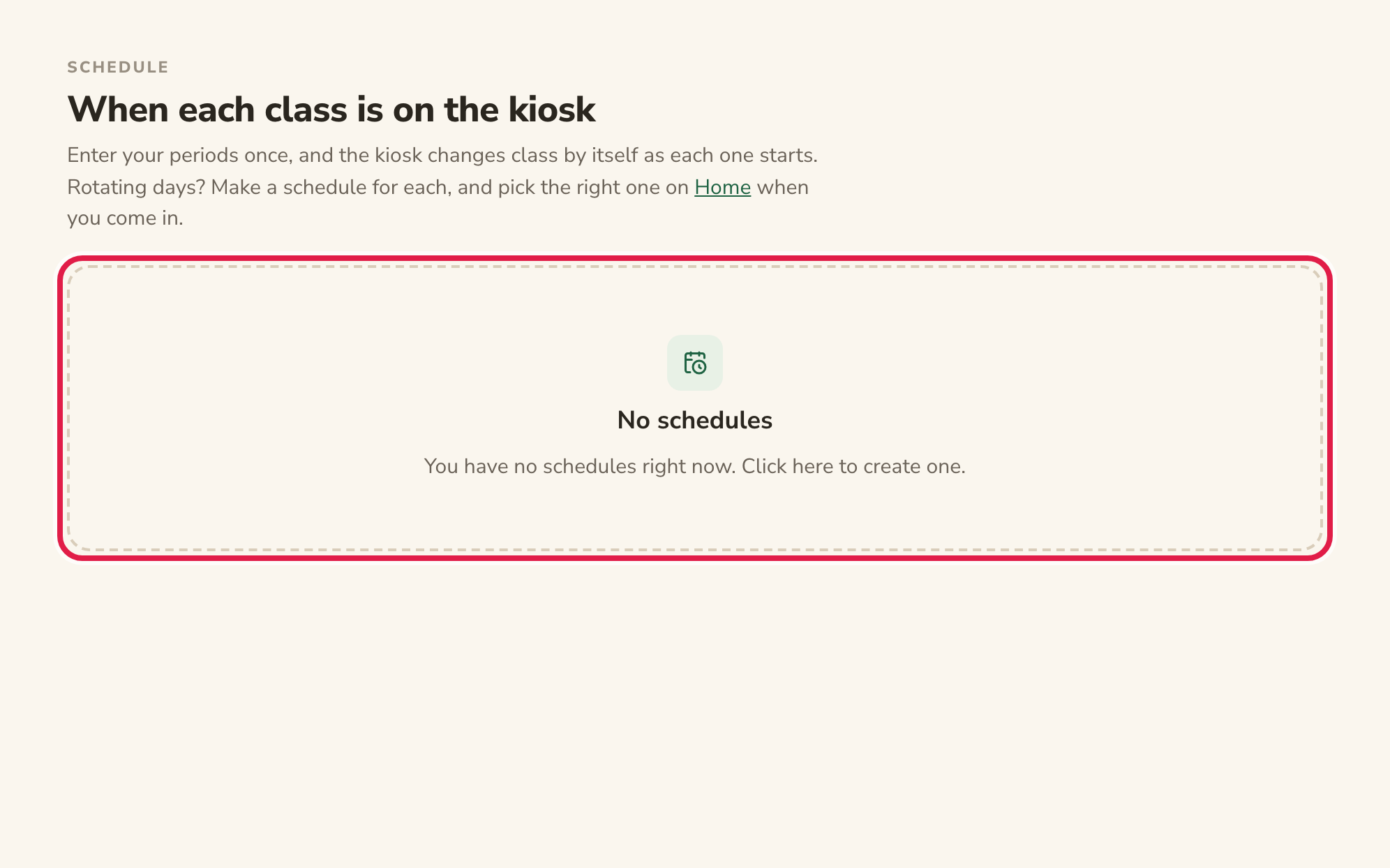
In Happy Hallways, click Schedule in the sidebar, then click to create a schedule (or New schedule, if you already have one).
Tip: Make your classes first (Classes, then New class), so you can put them in the schedule.
Name it
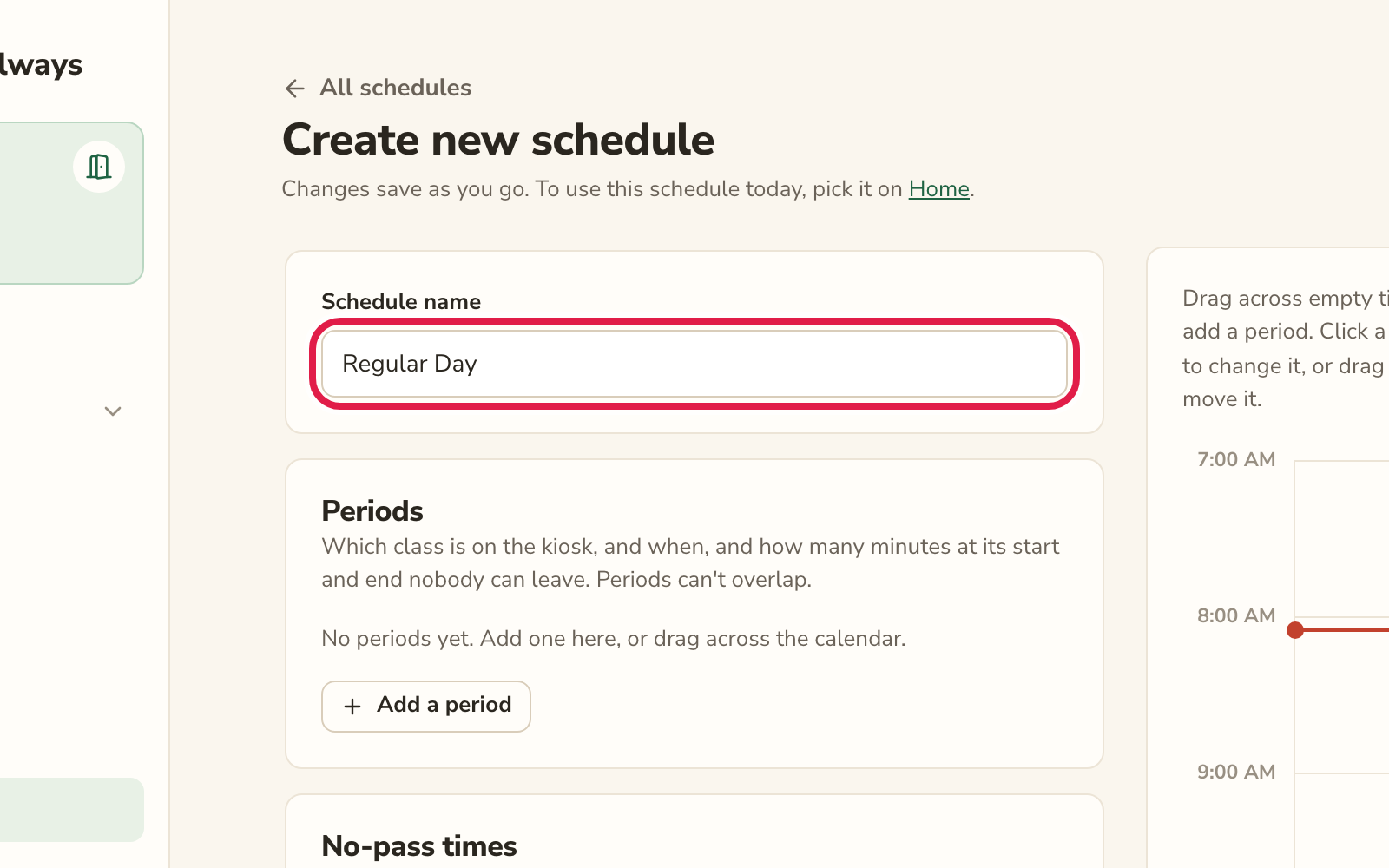
Give the schedule a name, like Regular Day.
Tip: Rotating days, or an early-release day? Make a schedule for each one, and pick the right one when you come in. Duplicate copies a schedule so you only change what’s different.
Add a period for each class
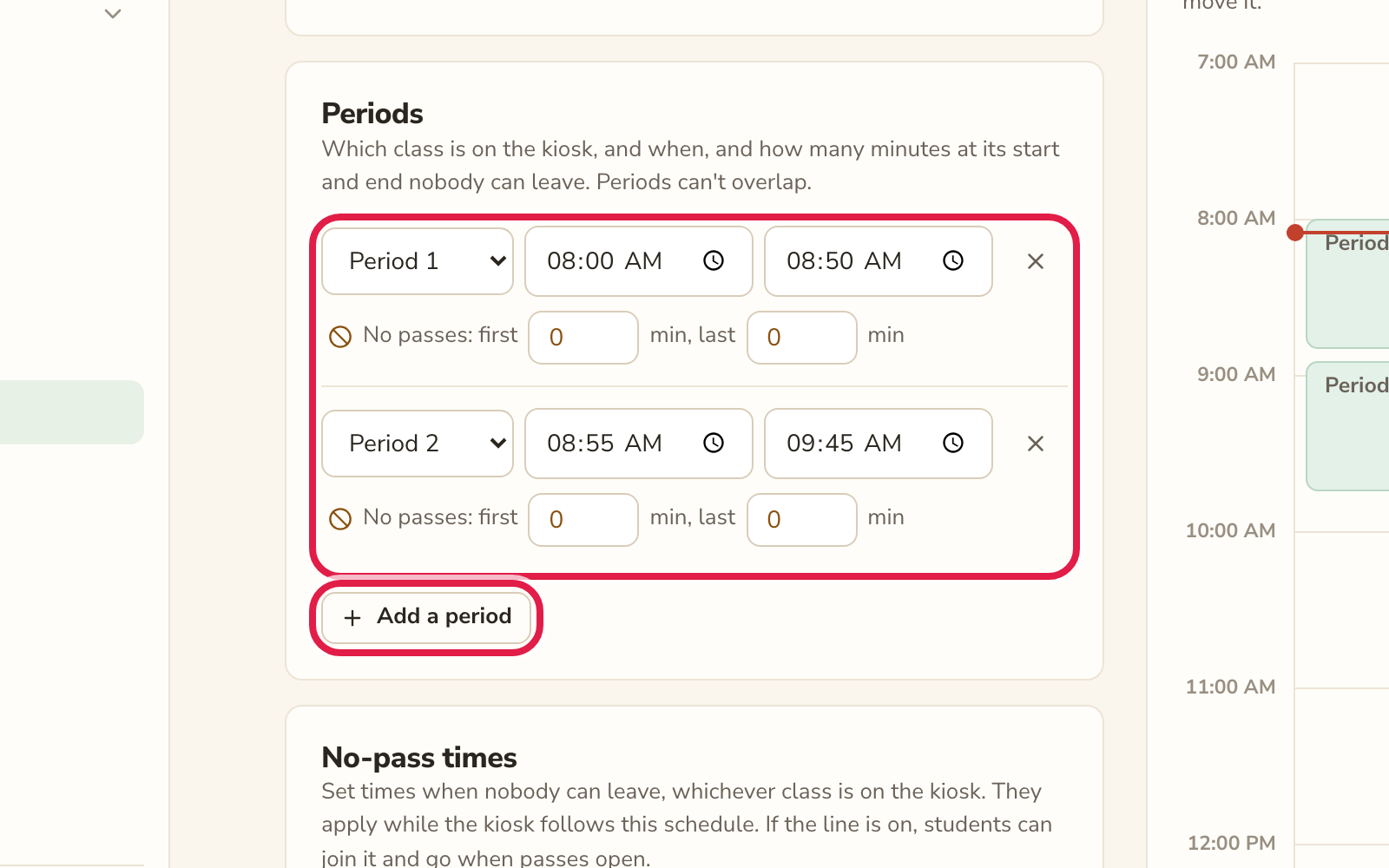
Click Add a period. Choose the class, then when it starts and ends. Do this for each class you teach. You can also drag across the calendar to draw a period.
Choose the no-pass minutes
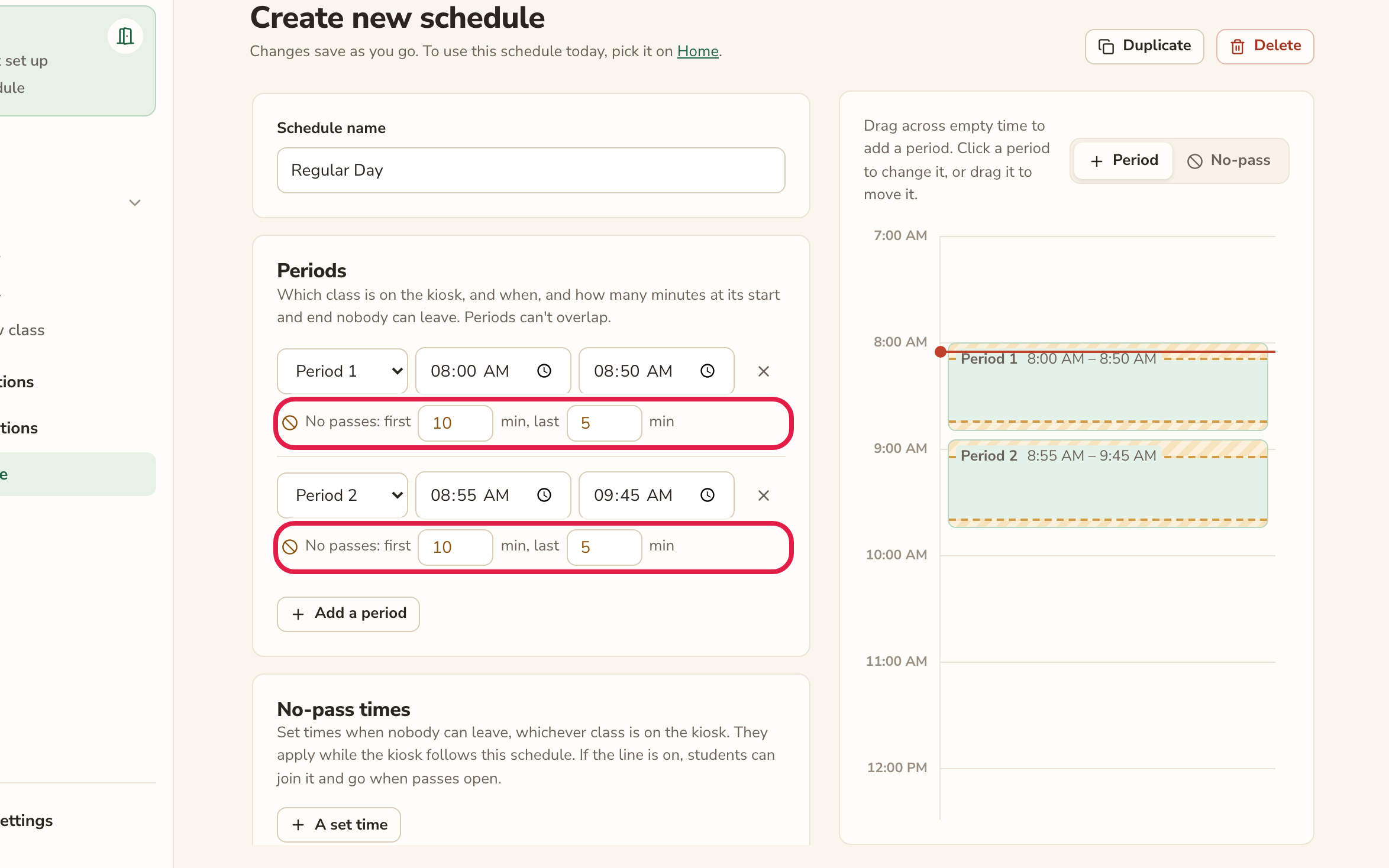
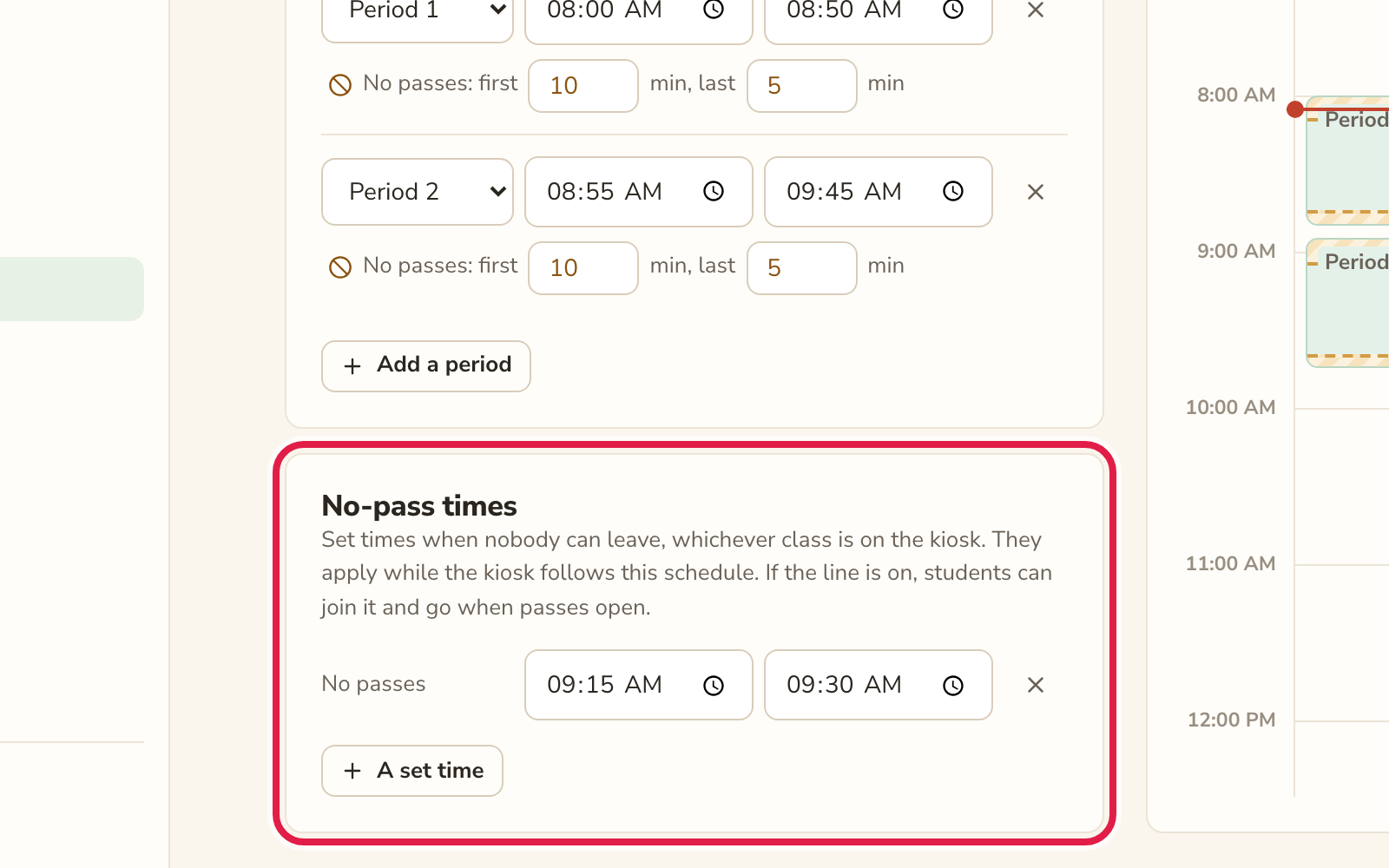
Under each period, set how many minutes at its start and end nobody can leave. For example: no passes in the first 10 minutes and the last 5. The calendar shows those minutes striped.
Add a set time, if you need one (optional)
For a time nobody can leave whatever class is on, like an assembly or testing, click A set time under No-pass times and enter when it starts and ends.
Use it on Home
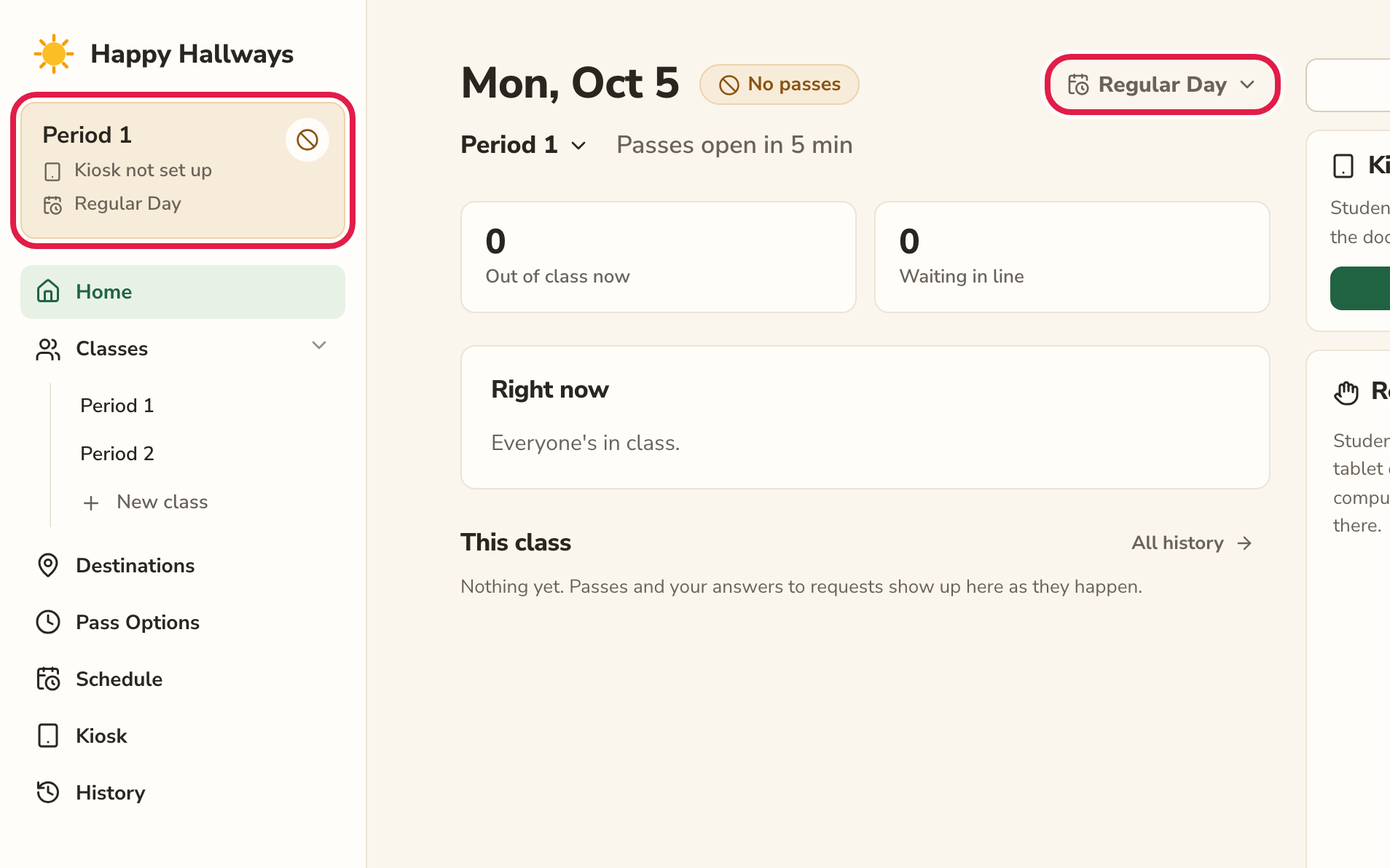
Click the box at the top of the sidebar to go to Home, and pick your schedule from the menu at the right, under the date. From now on, the kiosk changes to each class as its period starts, and follows the no-pass times by itself.
Tip: An early-release day? Pick that day’s schedule on Home in the morning, then switch back the next day.
What students see at the kiosk
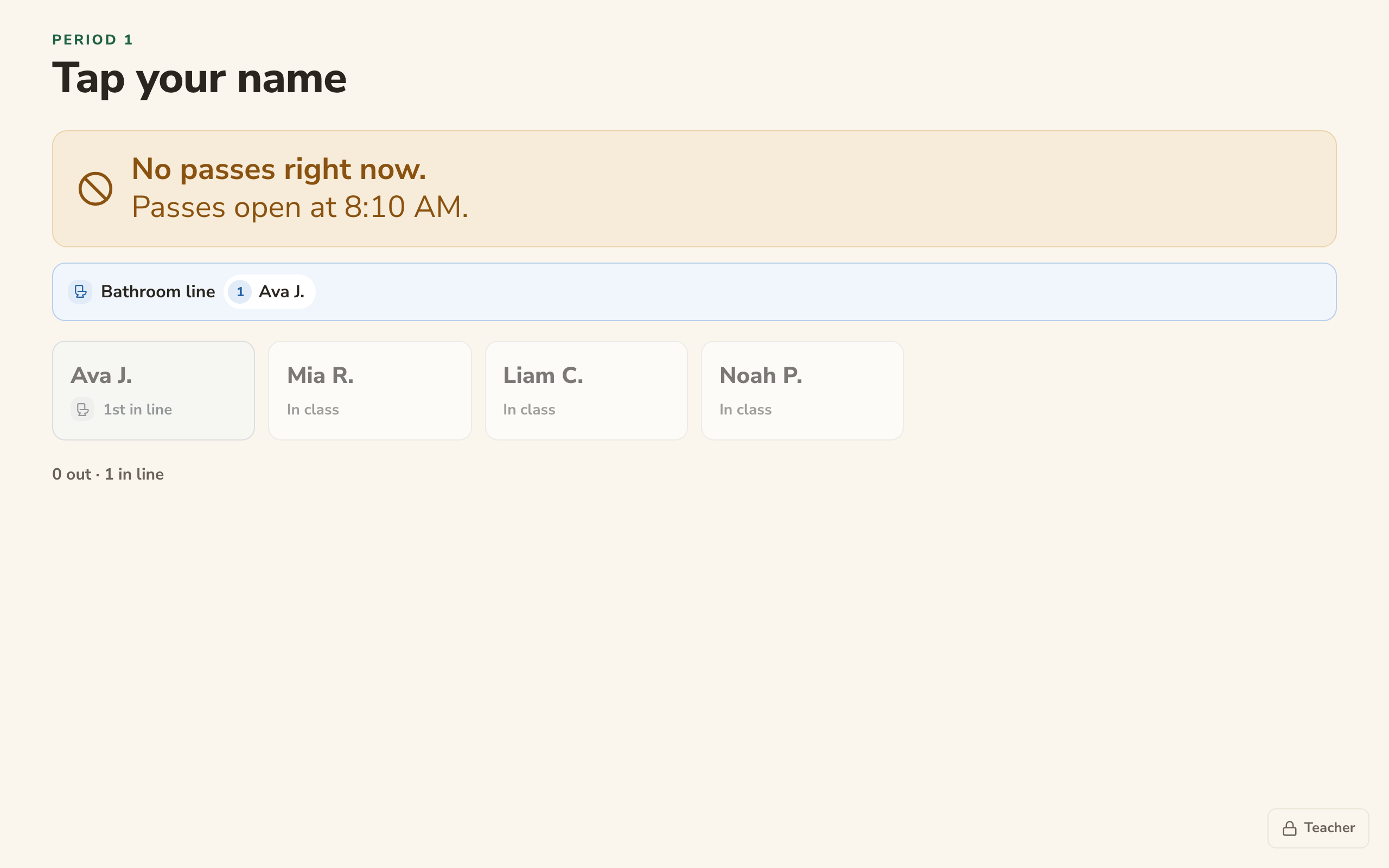
During a no-pass time, the kiosk says No passes right now and when passes open. A student who taps their name anyway can join the line, and goes first when passes open. (Turn on Let students line up on the Pass Options page for this. Without it, they’re asked to wait.)
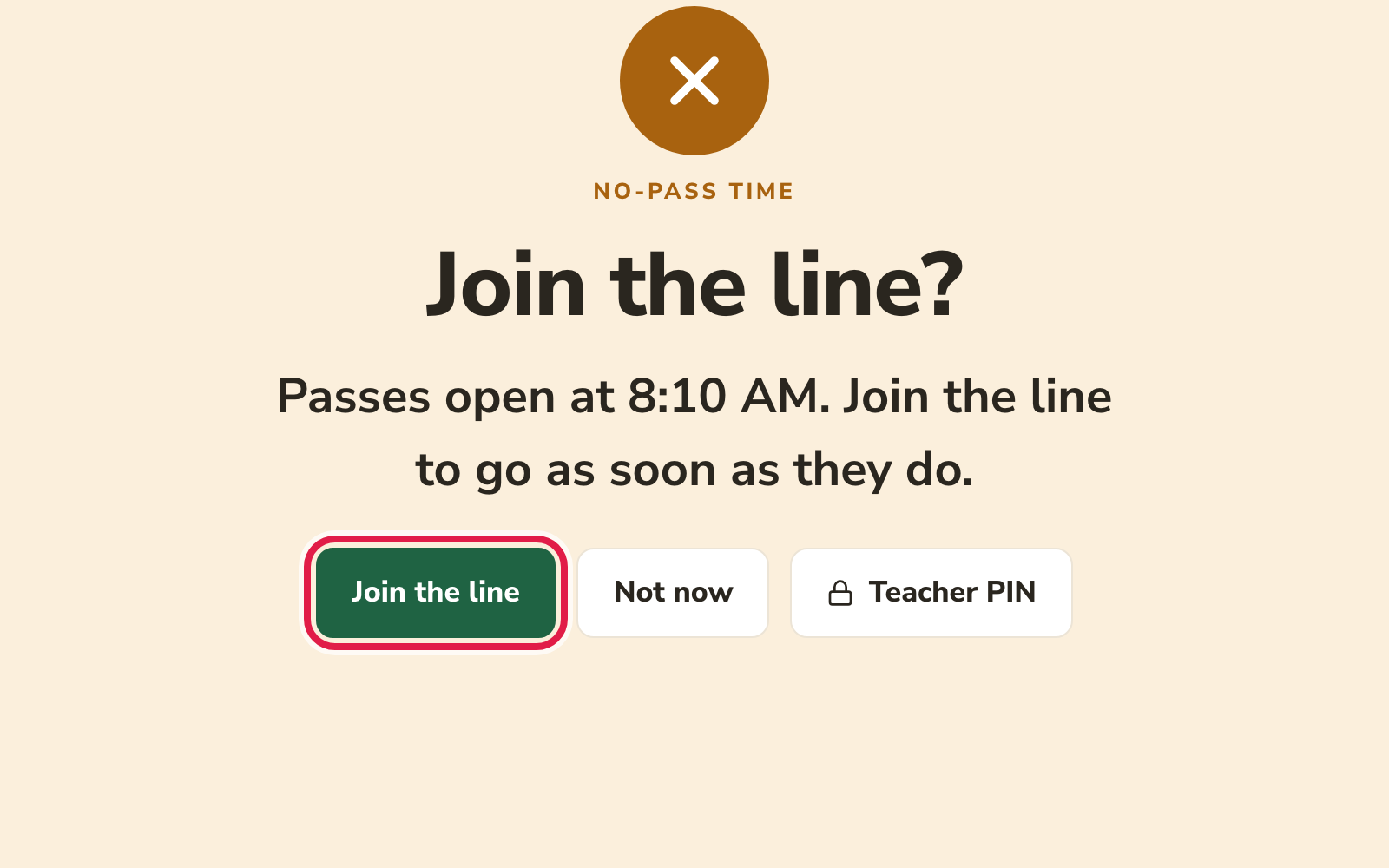
If a student really needs to go, they can tap Ask my teacher, and you approve or deny the request on Home. Or tap Teacher PIN and enter your PIN right at the kiosk. Either way, their pass is marked so your records stay complete. (When the kiosk is this computer, or it’s offline, only the PIN works.)
If it isn’t working
- The kiosk isn’t changing classes or following the no-pass times.
- The kiosk follows the schedule only while it’s in use. If someone switched classes by hand, it stopped following it, and the box at the top of the sidebar says Off schedule. Go to Home and click Back to Regular Day (or whatever your schedule is called).
- The kiosk says “No class right now.”
- That’s normal between periods. It shows which class is next and when it starts.
- Students are told to wait, but can’t join a line.
- Lines are off. Turn on Let students line up on the Pass Options page.
- I just need to stop passes for a few minutes, without a schedule.
- On Home, click No passes now. Click Open passes when you’re ready.